
How to Choose a USB-C Cable: Charging, Data, and Video Are Different
A USB-C connector does not tell you everything a cable can do. Match the power rating, data rate, video support, and length to the job before buying.
Research-based guide. Product claims are not PriceCoo measurements.
As an Amazon Associate I earn from qualifying purchases. Shopping links are paid links.
On this page
Disclosure: As an Amazon Associate I earn from qualifying purchases. Shopping links in this guide are paid links.
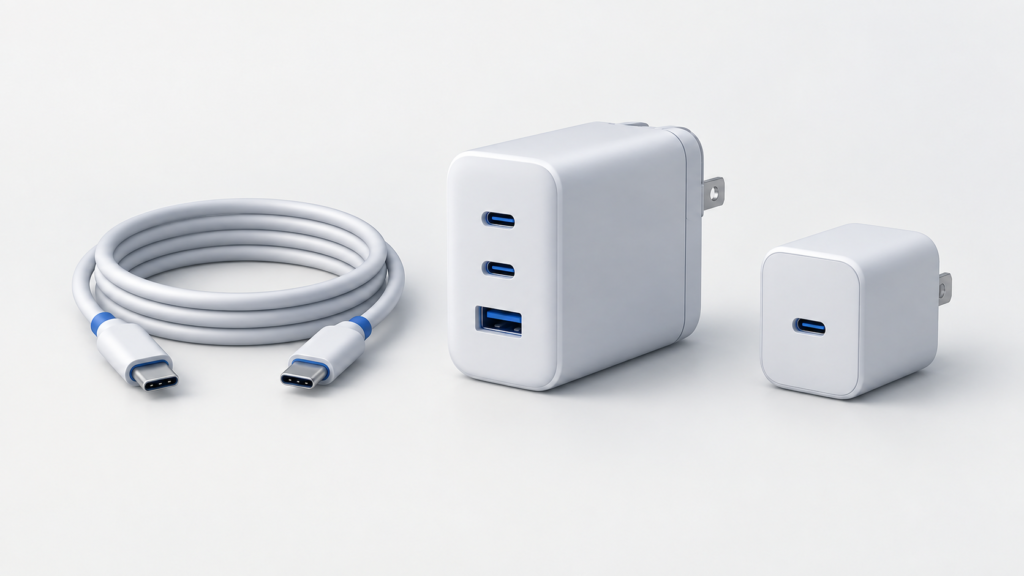
Cover: AI-generated conceptual illustration, not a photograph of the named products or evidence of testing.
Two cables can have the same USB-C connectors and belong in completely different parts of your setup. A cable suitable for charging a phone is not automatically the right replacement for the cable between a laptop and a monitor. The useful shopping question is not simply “Is this USB-C?” It is “Which functions must this particular connection carry?”
Research-based guide: We have not hands-on tested these cables. This article uses manufacturer documentation and standards-body information, checked September 21, 2026. Product examples illustrate specifications, not a tested ranking.
Start with three separate requirements
Write down charging, data, and video separately. The USB-IF’s cable-labeling rules distinguish power capability from supported data rate; a power label is not a substitute for a speed specification. Current certification requirements use 60W or 240W cable power markings, with data-rate marking requirements that differ for USB 2.0 cables. This describes the certification program, not a promise that every cable for sale carries those labels. Source: USB-IF cable and connector requirements.
| Your main job | What to verify | What is not enough |
|---|---|---|
| Charge a phone or laptop | Power capability and compatibility with your charger and device | A high data-rate number alone |
| Connect an external SSD | Explicit data rate and the drive’s required interface | A high charging-wattage number alone |
| Connect a USB-C monitor | Video capability, host output, and monitor input requirements | Matching connector shapes |
| Replace a dock’s host cable | The dock maker’s cable requirements, including protocol and length | A cable that happens to charge successfully |
1. Choose power for the charging path
A cable’s wattage is a capability ceiling, not the amount continuously delivered to your device. USB Power Delivery lets equipment negotiate power; the device, charger, and connection all matter. Buying a 240W cable does not turn an existing charger into a 240W charger or require a phone to draw that amount. Source: USB-IF Power Delivery overview.
For a replacement charging cable, first read the device maker’s charging guidance and the adapter’s output specifications. Then choose a cable explicitly suitable for that combination. If your setup includes a hub, check that extra step too: the hub’s charging input and output are separate specifications. Our USB-C hub pass-through charging guide explains that distinction.
2. Buy data capability only when the job needs it
For an external drive, keep a note of the exact drive or enclosure model, computer port, and intended cable. Look for a stated data rate rather than the word “fast.” A large wattage printed in a listing title answers a charging question, not a storage question.
For a charger-to-phone connection that will never transfer files, you may not need to pay for a dock-oriented cable. Conversely, if one cable must travel between a charging setup and an external SSD, treat both requirements as mandatory. Do not select the charging option first and assume the data side is included.
3. Check video explicitly
DisplayPort can carry video over USB-C using Alternate Mode. That capability is distinct from simply having a USB-C connector. Source: VESA’s DisplayPort over USB-C explanation.
Check the computer’s output, the display’s input, and the cable’s advertised video support as a chain. For a dock, begin with its included cable or a replacement approved for that model. Plugable cautions that charging-oriented cables without the required data and video specifications may not replace a docking cable successfully. Source: Plugable’s dock-cable replacement guidance.
A specification example, not a universal recommendation
Affiliate disclosure: We may earn a commission if you buy through the product-name links or Amazon buttons below. Confirm the selected model, seller, condition, price, and return terms on Amazon before ordering.
The Plugable TBT4-240W-1M Thunderbolt 4 cable is a one-meter example that combines manufacturer-listed support for up to 40Gbps data, up to 240W EPR charging, and video. Those capabilities remain dependent on the connected equipment. It is a candidate when you need several functions from one cable, not evidence that every charging-only setup needs Thunderbolt. Source: exact-model specifications.
A five-minute buying checklist
- Name both endpoints. “Laptop to monitor” is more useful than “spare USB-C cable.”
- List mandatory functions. Mark charging, data, and video as required or unnecessary.
- Measure the route. Include the distance around a stand and enough slack to move the laptop normally.
- Check the selected variation. Length, model number, and capability can differ within one listing.
- Save the specification. Keep the maker’s model page with your order, then label the cable for its intended job.
The best match is the cable that meets the whole job at the length you need. An impressive charging number cannot compensate for a missing video specification, and an expensive data cable is not automatically better value for a simple charging task.
Related buying guides
About this guide
Read our editorial policy and corrections policy. Sources and limitations are retained above.