
How to Choose a Portable SSD for Mac and Windows
Choose a portable SSD by the computers, files, capacity, and connections you actually use—not just the speed on the box.
Research-based guide. Product claims are not PriceCoo measurements.
As an Amazon Associate I earn from qualifying purchases. Shopping links are paid links.
On this page
Disclosure: As an Amazon Associate I earn from qualifying purchases. Shopping links in this guide are paid links.
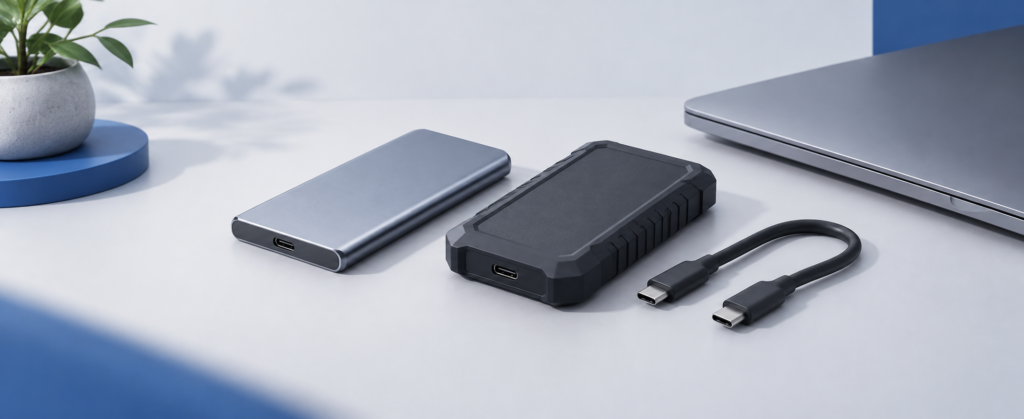
Cover: AI-generated conceptual illustration, not a photograph of the named products or evidence of testing.
About this guide: Research-based advice, checked September 21, 2026. Pricecoo has not hands-on tested these products. Manufacturer specifications are not our measured results.
A portable SSD is only useful if it fits the whole job: the computer you connect today, the second computer you share files with, and the amount of data you need to keep. Start with those requirements before comparing headline speeds. This guide is for ordinary external file storage, not installing an operating system or certifying a professional recording workflow.
Start with a one-minute storage brief
Write down three answers: what files will live on the drive, which exact computers must open them, and where the second copy will be stored. “Video work” is not specific enough. Moving finished videos between two laptops is a different purchase from keeping every project, source clip, and backup on one device.
| Your main job | Prioritize | Question before buying |
|---|---|---|
| Carry documents and selected projects | Enough capacity and uncomplicated access | Can both computers read and write the intended format? |
| Move large media folders frequently | A compatible high-speed connection | Does every port, cable, and hub support the chosen interface? |
| Keep a growing photo collection | Capacity planning and a separate backup | How much space will next year’s files need? |
| Travel between several computers | A workable cable and security plan | Can you open protected files on every required system? |
Separate the connector from the connection speed
USB-C describes the connector; the performance specification still matters. The USB Implementers Forum explains that USB 3.2 includes 5, 10, and 20Gbps signaling, and a mixed connection operates at its lowest common supported capability. A drive does not upgrade a slower port simply by plugging into it.
Check the computer’s full model number, then its manufacturer specifications. Repeat that check for a hub if you plan to use one. A fast SSD connected through a slower hub has a different path from the same drive connected directly. Keep both paths in your shopping notes instead of treating “my laptop has USB-C” as the final answer.
Plan Mac and Windows access before moving files
Apple’s file-format guide lists APFS as the Mac file system and exFAT as a Windows-compatible option available in Disk Utility. For an ordinary shared file drive, exFAT is a format to investigate; a Mac-only backup or application-specific workflow may have different requirements. Verify the backup app’s instructions separately.
Do not erase a drive merely because a computer cannot open it. Formatting can remove existing data. First establish whether it contains anything important and obtain a verified independent copy. This article deliberately does not provide erase, partition, or conversion steps.
Also check whether password protection requires software on the computers you will use. A personally owned laptop and a work-managed machine are not interchangeable: you may not be allowed to install utilities on the latter. Ask before making encrypted external storage the only way to deliver a project.
Choose capacity from your files, not the product name
Add up the folders you actually intend to store, leave room for their expected growth, and include working exports or duplicate versions if those are part of the job. A drive that only fits today’s collection can create an immediate sorting problem. Compare the same capacity and condition when judging value; a 1TB price beside a 2TB price is not a like-for-like comparison.
Keep backup spending in the same budget. Moving the only copy of a photo library onto an external SSD changes its location; it does not create another copy. Decide how you would recover the files if the drive were lost before spending extra on speed.
A concrete model to use as a reference point
Affiliate disclosure: We may earn a commission if you buy through the product-name links or Amazon buttons below. Confirm the selected model, seller, condition, price, and return terms on Amazon before ordering.
The Samsung T7 Shield 1TB, black (MU-PE1T0S/AM) is one example of the 10Gbps USB class, not a universal best pick. Samsung specifies up to 1,050MB/s sequential reading and 1,000MB/s writing for this model. Those are manufacturer ratings, not promised copy speeds on your computer.
Consider this capacity only if it suits your storage brief. Do not interpret the example as evidence that you need a new SSD if a cable, existing drive, or backup arrangement already solves the problem.
The final purchase checklist
- Record the exact capacity, model suffix, seller, and product condition.
- Confirm operating-system and required software compatibility.
- Identify the computer port and the intended direct or hub-connected route.
- Check the included cable types rather than assuming your charging cable is suitable.
- Plan the file format without erasing any existing data.
- Reserve space and money for a separate backup.
The sensible choice is the drive that satisfies all six checks. A higher advertised speed is worth investigating only after capacity, compatibility, and recovery are covered. If a hub is part of the setup, read our USB-C hub buying checklist before adding another item to the cart.
Related buying guides
About this guide
Read our editorial policy and corrections policy. Sources and limitations are retained above.