
How to Choose a USB-C Hub: A Laptop Compatibility Checklist
Choose a USB-C hub that fits your laptop. Check monitor support, charging, data ports, and compatibility with this practical buying checklist.
Research-based guide. Product claims are not PriceCoo measurements.
As an Amazon Associate I earn from qualifying purchases. Shopping links are paid links.
On this page
- The quick answer
- 1. Start with your laptop, not the accessory
- 2. Define your display setup precisely
- 3. Separate charging input from power delivered to the laptop
- 4. Count useful connections, not just sockets
- 5. Use exact models to narrow your shortlist
- 6. Complete this buying checklist
- What this guide cannot tell you
Research-based buying guide | Research checked September 16, 2026
As an Amazon Associate I earn from qualifying purchases. Shopping links in this guide are paid links.
This guide is based on manufacturer specifications and official documentation. We have not tested these products hands-on.
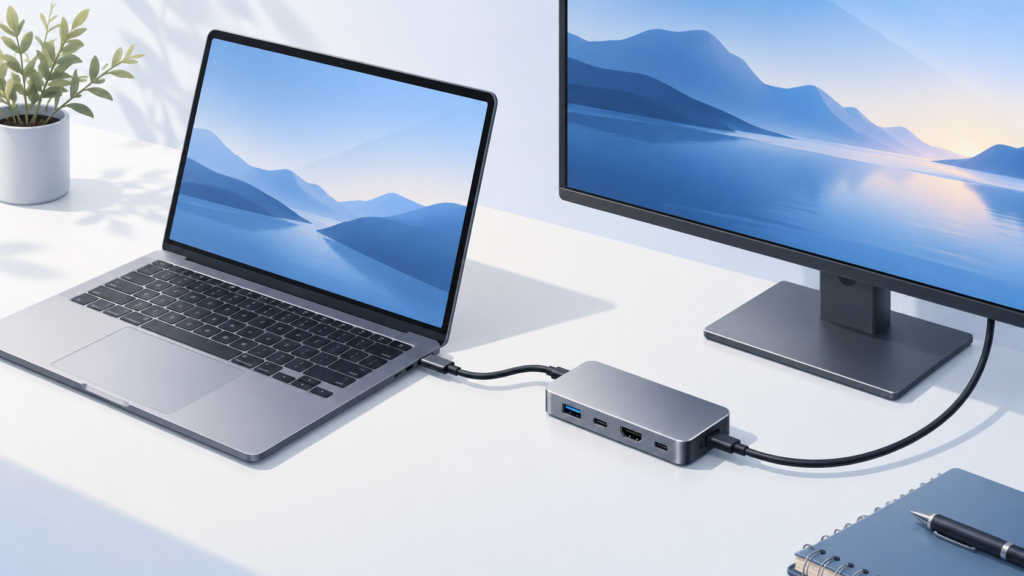
AI-generated editorial illustration. The devices are generic, not product photographs or evidence of hands-on testing.
The quick answer
Choose a USB-C hub by matching it to your laptop, monitor, accessories, and charging needs—not by choosing the model with the most ports. Write down what you need to connect, confirm each function in the documentation, and rule out any hub that cannot meet a must-have requirement.
For a simple setup, that might mean one HDMI output and a few USB data ports. For another, Ethernet and a card reader may matter more. This guide helps you build that requirements list before comparing products.
We use “USB-C hub” in the everyday shopping sense for a compact multiport adapter. Standards terminology can distinguish a USB-only hub from a dock that also supports video. VESA explains that distinction in its FAQ.
1. Start with your laptop, not the accessory
Find your laptop’s full model number and the documentation for the specific port you plan to use. Record:
- Laptop model and, where relevant, processor or chip.
- Operating system and version.
- The port’s documented data and video capabilities.
- Whether that port accepts power to charge the laptop.
The USB-C connector does not, by itself, identify a data speed or guarantee USB Power Delivery. USB-IF treats the connector, data specifications, and power-delivery support as separate capabilities. Look for explicit specifications rather than inferring them from the shape of the socket. USB-IF connector guidelines.
If the laptop documentation leaves something unclear, flag it as unknown. “It plugs in” is not a complete compatibility check.
2. Define your display setup precisely
Instead of writing “connect a monitor,” write something specific: “one external display at 3840 × 2160 and 60Hz, while keeping the laptop screen on.” Then check the laptop, adapter, display input, and cable against that target.
For an adapter that uses DisplayPort Alt Mode, the host connection needs that video capability. VESA explains that DisplayPort over USB-C can be converted to HDMI, but a USB-C connection without the required video support will not supply a picture through that route. Check the laptop documentation rather than relying only on a port icon. VESA’s DisplayPort-over-USB-C guidance.
For a MacBook Air, check the exact model’s display limit and operating conditions. Apple notes that a supported hub can change how displays connect without increasing the computer’s maximum supported display count. More HDMI sockets are not proof that your particular Mac can run more independent desktops. Apple’s MacBook Air display-support guide.
Your display checklist should answer:
- How many external screens do I need?
- What resolution and refresh rate do I want on each?
- Must the built-in screen remain active?
- Which display inputs and cables will I use?
- Does the manufacturer document this combination for my computer?
Software-assisted display adapters require a separate compatibility check; they are outside this guide’s product examples.
3. Separate charging input from power delivered to the laptop
A large wattage on the box is not a complete charging specification. Identify the charger’s output, the hub’s accepted input, the hub’s specified output to the laptop, and the laptop’s own requirements. USB Power Delivery allows devices to negotiate power; a supported maximum is not a promise of constant power draw. USB-IF’s Power Delivery overview.
For example, Anker lists the 332’s charging input at 100W and its laptop output at 85W. Those are manufacturer specifications, not measurements we made. Anker 332 specifications.
Before ordering, ask:
- Does my laptop support charging through the chosen port?
- What charger and cable does the hub require for its stated output?
- Is a suitable charger included, or is it a separate purchase?
- Does the documented laptop output meet my computer’s requirements?
Do not assume every hub reserves the same amount of power. If the documentation gives only an input rating, ask the manufacturer for the host-output specification.
4. Count useful connections, not just sockets
Make a list of the devices you will use together. Then assign each one a suitable connection.
| What you want to connect | What to confirm before buying |
|---|---|
| Keyboard, mouse, or USB receiver | Connector type, available data ports, and physical spacing |
| External storage | The relevant data-port rating and compatibility with your drive and cable |
| SD or microSD card | Required card format and reader specification; simultaneous use if you need both slots |
| Wired network | An Ethernet port, supported network speed, and operating-system compatibility |
| Charger | A documented power-input port; do not assume every USB-C socket has that role |
When comparing data capabilities, look for an explicit speed such as 5Gbps or 10Gbps. USB-IF’s consumer naming guidance identifies these as signaling capabilities. They are not Pricecoo file-transfer benchmarks. USB-IF data-performance guidance.
For a drive-focused setup, put its connection requirements near the top of your checklist. For a keyboard-and-mouse setup, prioritize the connections you actually need instead of paying for an unused card reader or network port.
5. Use exact models to narrow your shortlist
The two products below illustrate different connection lists. They are not a ranking, and neither is a universal recommendation.
Affiliate disclosure: We may earn a commission if you buy through the product-name links or Amazon buttons in this section.
| Manufacturer-listed feature | Anker 332 — A8355 | Anker 555 — A8383 |
|---|---|---|
| USB data connections | Two USB-A and one USB-C; up to 5Gbps | Two USB-A and one USB-C; up to 10Gbps |
| HDMI output | One; up to 4K at 30Hz | One; up to 4K at 60Hz |
| Built-in Ethernet and card slots | Not in the listed port set | 1Gbps Ethernet, SD, and microSD |
These are stated maximum capabilities, not measured results or guarantees for every laptop. Sources: Anker 332 model page and Anker 555 model page.
Consider the Anker 332 when its simpler port list covers your needs
The Anker 332 USB-C Hub (A8355) is a candidate to investigate for one HDMI display and USB accessories. If your requirement is specifically 4K at 60Hz, its stated 4K-at-30Hz ceiling rules it out for that use.
Consider the Anker 555 when Ethernet or card slots are on your checklist
The Anker 555 USB-C Hub (A8383) is a candidate when you need those connections in the same adapter. The higher listed data and display limits do not establish better stability, cooler operation, or compatibility with your exact setup; we have not tested those things.
For either listing, confirm the model, selected variant, seller, condition, and delivery options before purchasing. We are not claiming a current discount or quoting a live price.
6. Complete this buying checklist
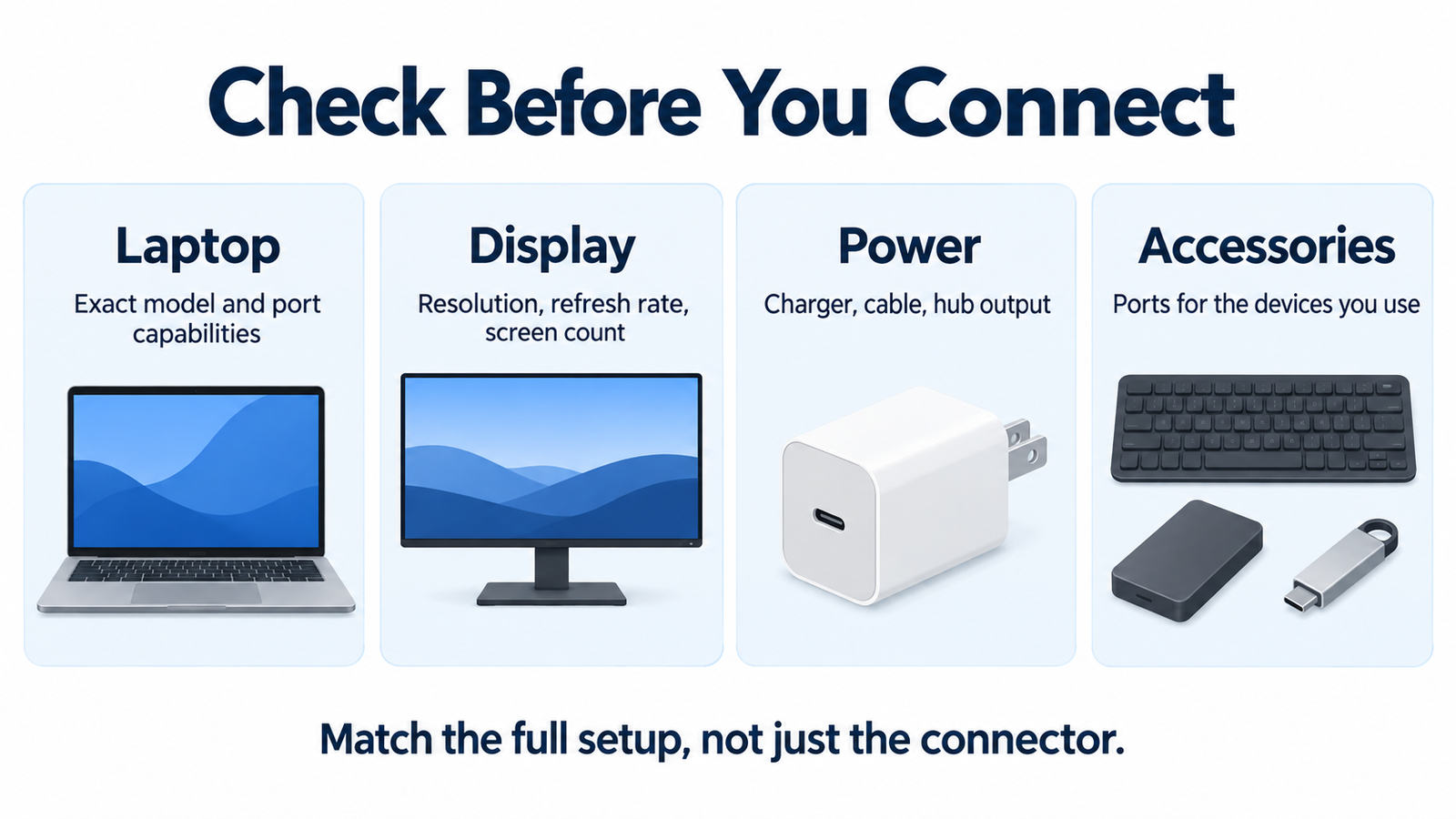
AI-generated explanatory graphic. Check the laptop, display, power arrangement, and accessories as one setup. The same checklist is provided as text below.
Use the following worksheet to compare a candidate with your actual needs. An unanswered must-have is a reason to ask a question before ordering.
| Your setup | Fill in before buying |
|---|---|
| Laptop and operating system | Exact model, chip if relevant, and OS version |
| Host connection | Which laptop port you will use and its documented functions |
| Display target | Number of screens, resolution, refresh rate, and laptop-lid arrangement |
| USB accessories | Devices used together and their required connections |
| Charging arrangement | Charger, cable, required laptop power, and documented hub output |
| Desk or travel fit | Cable reach, port placement, and room around adjacent laptop ports |
| Unresolved question | What the manufacturer still needs to confirm |
If you contact support, make the question concrete:
Can this exact hub model support my laptop model and operating system with the monitor, resolution, refresh rate, and accessories listed here? What charger and cable are required, and what limitations apply when everything is connected?
Keep the answer with your notes. Compare the complete setup cost, including any required accessories, rather than the adapter alone.
What this guide cannot tell you
Specifications help eliminate mismatches. They do not tell us how a hub handles heat, reconnects after sleep, performs during a long file transfer, or behaves with your particular combination of devices. We have not measured those outcomes or verified either product on a physical laptop.
The practical next step is to finish your requirements list, shortlist only models that document the necessary functions, and resolve remaining compatibility questions before buying. If your laptop already provides every connection you need, you may not need a hub at all.